How to Choose a Good Educational App for Your Child — 7 Criteria
A practical checklist for parents: how to distinguish a valuable educational app from colorful fluff. 7 criteria that really matter.
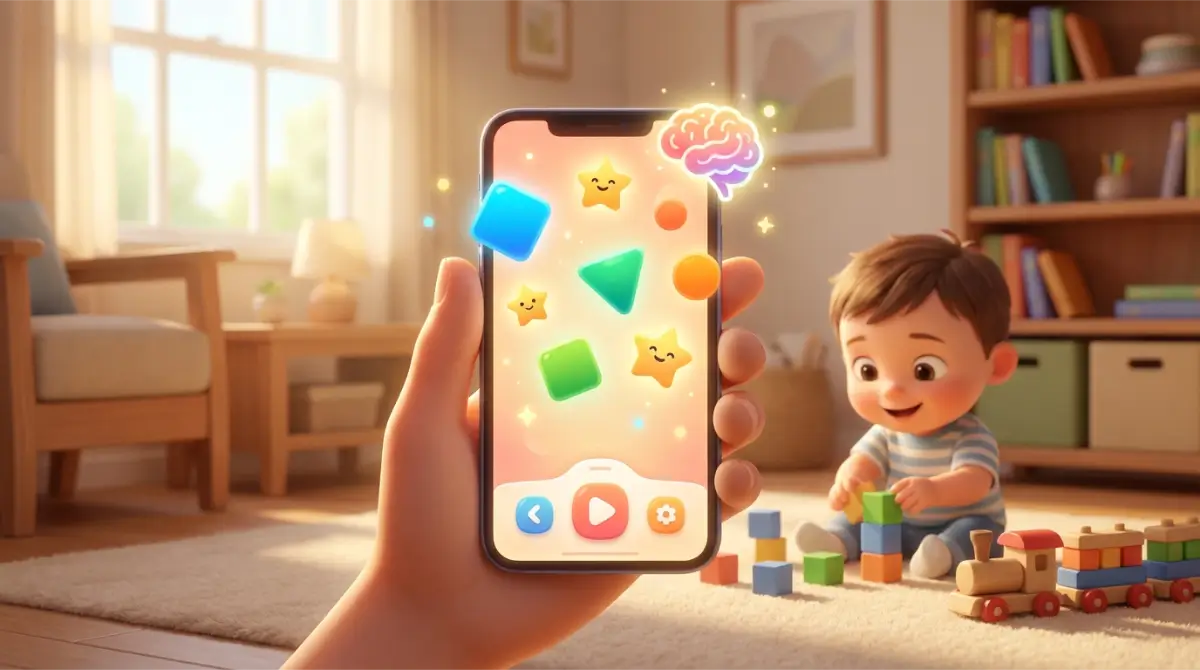
Searching "educational" in the app store returns thousands of results. The trouble is that the "educational" label costs nothing and guarantees nothing — any app can stick it on, including one that teaches little or nothing. So how do you find the one that will actually help your child? Below is a concrete checklist of seven criteria — but first, briefly, what actually makes an app educational in the first place. Without that, the rest is guesswork.
What Does "Educational" Actually Mean?
Learning scientists looked at this directly. A team led by Kathy Hirsh-Pasek and Roberta Golinkoff analyzed when an app truly teaches, and identified four pillars of effective learning¹. An app supports learning when it is:
- active ("minds-on") — the child thinks and does, rather than passively tapping to make something happen;
- engaged — it keeps the child focused on the task, instead of distracting them with flashes, ads, and rewards unrelated to learning;
- meaningful — it connects new content to something the child already knows (counting apples on a tree, not an abstract "3+4");
- socially interactive — it encourages conversation and shared doing, for example nudging the child to show a parent what they made.
These four pillars are a good lens: a colorful app where the child only taps and watches animations looks "educational," but meets none of them. In fact, an analysis of a large number of "educational" apps found many score poorly on exactly these pillars — leaning on catchy stimulation and reward-collecting rather than the child's real thinking¹. That's why the label in the store means nothing on its own, and you have to look deeper. The seven criteria below are a practical translation of those pillars into things you can genuinely check in five minutes.
Criterion 1: Difficulty Progression
A good app starts easy and gradually raises the bar. The child shouldn't be overwhelmed at the start or bored after five minutes — which means the level has to grow along with their skill.
Red flag: every task has the same difficulty, or "harder" simply means "more of the same." Green flag: a visible structure of levels, scenes, or chapters — the child feels they're moving forward. Good progression sustains that state where a task is doable but takes effort — exactly the state in which children learn best.
Criterion 2: Immediate Feedback
After each answer, the child should know right away whether they got it right — ideally with a short hint or encouragement, not just a green or red color. This is one of the pillars of active learning: the child learns from the response, not from a score at the end.
Red flag: the child answers and nothing happens, or they have to wait for a "score" at the very end. Green flag: an immediate response after every task, with positive reinforcement for the attempt too, not only for a correct answer.
Criterion 3: A Motivation System Without Punishment
The best motivation systems reward persistence, not perfection. The child should want to try again after a mistake, not fear it — because fear of error is one of the biggest brakes on learning.
Red flag: losing all progress after one mistake, "game over" after a few slips, pressure to be flawless. Green flag: a forgiving system (retries or lives) that treats a mistake as part of learning, and rewards for completion rather than for perfection.
Criterion 4: Task Variety
Math isn't just "give the answer." Comparing, sorting, gap-filling, matching pairs, true/false — different formats exercise different aspects of understanding numbers and guard against rote learning without comprehension.
Red flag: only one type of task (forever "what's 3+5?"). Green flag: several rotating formats that engage different skills. Variety also supports engagement — a child bores less often when not doing the exact same thing over and over.
Criterion 5: Insight for Parents
Parents should know what the child is doing in the app, how much time they spend, and how they're progressing. Without that, there's no way to tell whether the app is even working — and a parent dashboard also invites conversation about what the child is learning (the fourth pillar: interaction).
Red flag: no insight at all — the child "does something" and you have no idea what. Green flag: a dashboard with progress, completed levels, and time spent, ideally PIN-protected so the child can't switch it off themselves.
Criterion 6: No Ads or Microtransactions
This isn't a "nice to have" — it's an absolute minimum. Ads in a children's app can be dangerous (a child clicks random links), distracting, and they interrupt learning; microtransactions teach bad habits and turn play into a hunt for "diamonds." In the language of the pillars, an ad is the very definition of distraction — it pulls the child away from what they were supposed to be learning.
Red flag: a "free" app with an ad every few minutes and a "buy diamonds" button. Green flag: a freemium model (free start, paid full access) or a one-time purchase — and zero ads inside.
Criterion 7: Context and Engagement
Sterile tasks (white background, black numbers) bore children after two minutes. Story, characters — like the Park Adventure characters — and context ("we're counting apples on a tree," not "what's 3+4") extend engagement and deepen understanding — the "meaningful" pillar: knowledge hooked onto a story and a picture sticks better than a dry example.
Red flag: an interface like a test, with no context at all. Green flag: story, characters, places — the child wants to keep playing to see what happens. One trap to watch: the context should lead to counting, not bury the child in animations where the math gets lost.
Fit to Age — and to Your Child
Even the best app is a bad app if it's bad for this particular child. An app that's great for a five-year-old can bore a seven-year-old and vice versa — too hard discourages, too easy lulls. So look not only at whether an app is good "in general," but whether it fits your child's age, pace, and interests. The stated age range is only a starting point; children of the same age can be at very different stages.
Pay attention to temperament, too. One child needs more story and characters just to sit down; another prefers a calmer, less "loud" interface, because too much stimulation is distracting. If an app lets you set the starting level or adapts difficulty to the child, that's a big plus — it grows with them instead of forcing a choice between "too easy" and "too hard." In short: the best app isn't the one with the highest store rating, but the one your child actually thinks with and wants to return to.
The Five-Minute Test
The best checklist is you. Before handing your child an app, spend five minutes and play it yourself. Ask a few questions: do you actually have to think and count to move on, or is mindless tapping enough? After a mistake, do you get a hint? Does the level rise? Are there no ads? Can you see what the app teaches and over what range? If most answers are "yes," there's a good chance it's a valuable tool. If "no," it's entertainment dressed up as education. This simple test saves a lot of disappointment and many needless installs.
How to Check an App Before Installing
Some things you can check "from the outside" before you even launch it. Read the description for what the app teaches and at what age — not just marketing promises. Skim the reviews, but critically: five stars with no substance means less than a few concrete parent opinions. Independent services that review children's content — rating apps for value and safety — are useful here as a second opinion, not gospel³. Check what permissions the app asks for — a counting app doesn't need access to contacts or location. And remember that with young children, an adult chooses and vets the content, and apps deliver the most value when the child isn't left entirely alone with them².
Free or Paid?
"Free" rarely means "free" — it usually means "paid for with ads" or "with microtransactions." And that's a real cost: not in money, but in your child's attention and safety. A paid model (one-time or subscription) or an honest freemium — a free slice to try, paid full access with no ads — is usually a better choice than a "free" app plastered with banners. A good rule: if you're not paying with money, your child's attention is probably the product. Use the free slice to run the five-minute test before you pay for anything.
Safety and Privacy
Educational value is one thing, but in an app for a child, safety matters just as much. Before you trust an app, check a few things: that it has no ads leading to unknown places, that it doesn't collect unnecessary data, and that it doesn't let the child make accidental one-tap purchases. A good app for young children is "walled" — it doesn't throw the child out to external sites and doesn't ask for data that counting practice simply doesn't need².
It's also worth setting basic protections on the device: turn off purchases without confirmation, check the privacy settings, and use a kids' mode if one is available. This isn't overkill or a lack of trust in your child; it's taking off their shoulders a responsibility they're still too young for. A six-year-old shouldn't have to recognize that a flashing "You won!" banner is an ad — we set the world up so they don't have to.
Red Flags at a Glance
If you're in a hurry in the store, these signals should raise a flag immediately: ads or purchase prompts during play; rewards mainly for watching animations rather than for thinking; no change in difficulty; no insight of any kind for the parent; one task type repeated endlessly; requests for unnecessary permissions. One red flag isn't a verdict, but two or three at once is a good reason to keep looking. Nice graphics and catchy music aren't enough — underneath, there has to be real learning.
EduBert Against This Checklist
Honestly: we're not asking you to take it on faith — we're inviting you to run EduBert through the same seven, too. We designed it around exactly these criteria: progression through levels, immediate feedback after every task, a system that rewards persistence and doesn't punish mistakes, tasks in many formats (a hallmark of effective educational games for kids), progress insight for all children with Premium (FREE has no panel statistics), no ads or microtransactions, and a story with the Park characters instead of a sterile test. But don't take our word for it — the first level of The Park Adventure is free precisely so you can run the five-minute test yourself and see how many boxes it actually ticks.
Summary
Choosing a good app doesn't take technical knowledge — it takes a few of the right questions. Remember the four pillars (active, engaged, meaningful, socially interactive) and the seven practical criteria, then run the five-minute test. That's enough to tell a tool that truly teaches from colorful emptiness with ads. And once you've found a good app, remember it works best in sensible doses, alongside concrete materials and shared play.
Frequently Asked Questions
How do I know an app is genuinely educational, not just labeled that way? Check the four pillars: does the child think and act (active), are they free of ad distractions (engaged), do the tasks have context (meaningful), and does it invite conversation (interactive)? Simplest of all — run the five-minute test and play it yourself.
How many educational apps should a child have? Better one or two good ones than ten mediocre. A valuable app has weeks of progression, so you get more from sticking with one and working through the levels than from collecting icons "just in case."
Can a free app be good? It can, but be careful: "free" often means "with ads" or "with microtransactions." An honest freemium — a free slice to try and paid, ad-free full access — is best.
From what age are apps worth using? For children aged 5–7, choose simple apps with short tasks, a story, and clear feedback — and, at least at the start, use them together.
Will an app replace learning with a parent or at school? No. A good app reinforces and automates, but understanding is built first on concrete objects and in conversation. Treat it as one tool, not the whole of learning.
Which permissions should I watch for? A counting app doesn't need access to contacts, location, or the microphone. Excessive permission requests are a warning sign.
Do lots of downloads and five stars guarantee quality? No. Popularity and ratings speak to marketing, not educational value. A better test is concrete parent reviews and your own five minutes with the app.
The app is good but my child gets bored quickly — what now? First check the fit: maybe the tasks are too easy (look for a higher level) or too hard (step back). Limiting sessions to a short serving helps too — a child returns more eagerly to something they didn't get to overdo.
The "educational" label costs nothing — but you have simple tools to verify it: four pillars, seven criteria, and five minutes of your own play. If you'd like to practice this checklist on a live example, The Park Adventure is waiting — the first level is free.
Sources
- Hirsh-Pasek, K., Zosh, J. M., Golinkoff, R. M., et al. (2015). "Putting Education in 'Educational' Apps: Lessons From the Science of Learning." Psychological Science in the Public Interest, 16(1): psychologicalscience.org — the four pillars of effective learning (active, engaged, meaningful, socially interactive) as criteria for evaluating educational apps.
- NAEYC & Fred Rogers Center — Position Statement on Technology and Interactive Media in Early Childhood Programs: naeyc.org — intentional, adult-guided use of high-quality media and content with young children.
- Common Sense Media — independent ratings and reviews of apps and media for children and families: commonsensemedia.org — a practical second opinion on an app's value, age-appropriateness, and safety.

Written by the EduBert team
We create educational games that combine play with learning math.
Read also

Educational Games for Kids — Do They Really Work? What Research Says
What research says about educational games: when they help kids learn math, how to spot a good one, and how much screen time is too much.
How to Teach Your Child Addition — Calmly and Without Tears
Teach your child addition step by step: from blocks to mental math, three strategies that make the difference, and how to practice without pressure or tears.
Screen Time and Learning — How to Find a Healthy Balance
How much screen time is reasonable for a 5–7-year-old? How to tell valuable screen use from empty scrolling, and build a healthy balance.

Try EduBert together
Create a free account and let your child explore — the first level of every adventure is free.
Create free account →No card required — 4 adventures and the Training Meadow